 BestAIFor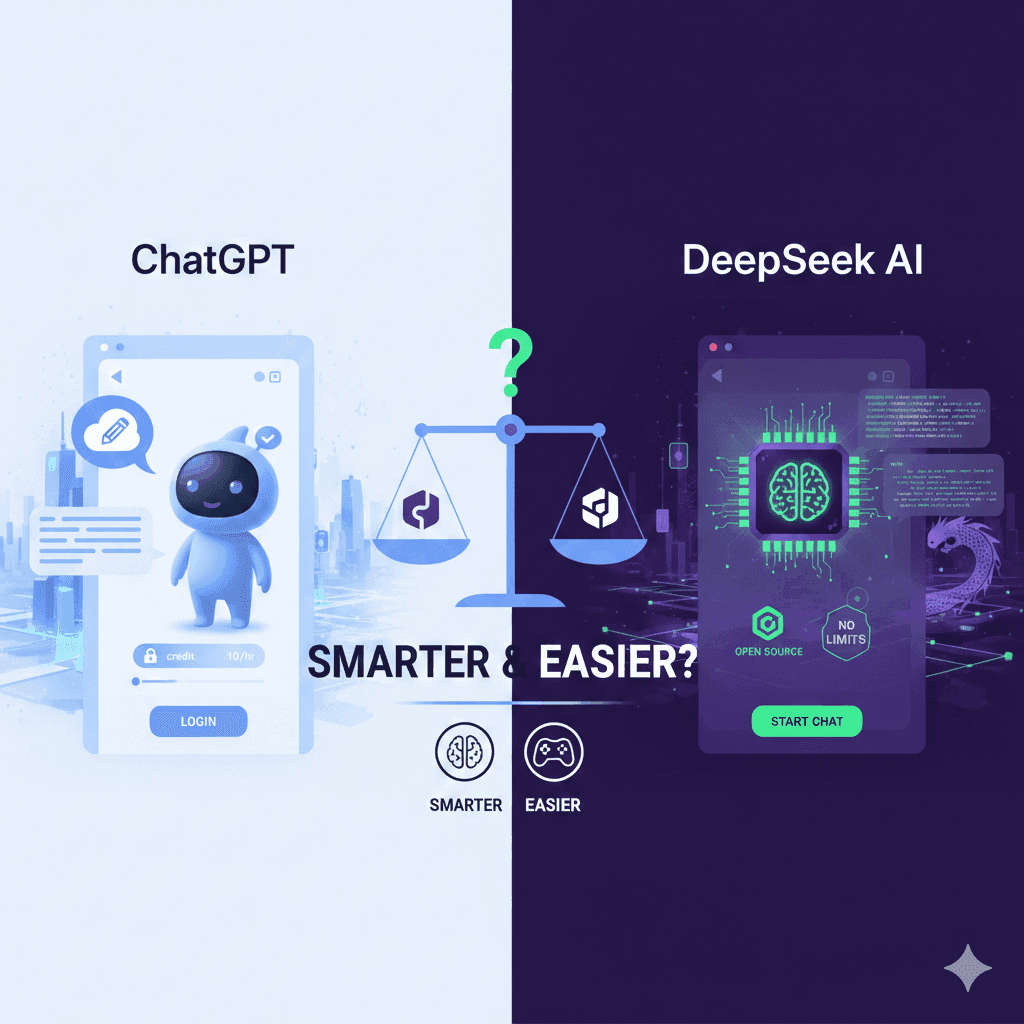
ChatGPT vs DeepSeek: Which Free AI for Beginners is Smarter?
ChatGPT and DeepSeek are two leading free AIs for beginners. This guide compares their features, writing skills, and ease of use to help you choose.
January 20, 2026•8 min read
TL;DR: GPT-5.4 shipped on March 5, 2026 with native computer use — it can click, type, and navigate your desktop via screenshots. It scores 75% on real desktop task automation versus a 72.4% human baseline and 47.3% for GPT-5.2. Most people will prompt it like a chatbot and get chatbot results. Here is how to actually use it.
Most people will use GPT-5.4’s computer use feature like a slightly smarter browser extension. They will ask it to help with Excel or look something up and wonder why it feels underwhelming. The model can now control your entire desktop. The gap between that capability and most people’s results is a prompting problem.
GPT-5.4 launched March 5, 2026. Its computer use capability works by reading screenshots and issuing mouse and keyboard commands directly — no browser plugin, no API wrapper required. On OSWorld-V, a benchmark that tests real desktop task completion, it scores 75.0%, above the human baseline of 72.4%. GPT-5.2 scored 47.3% on the same benchmark. That is not a minor improvement.
What changed is not just accuracy. It is the architecture of how you interact with software. Before this, automating a workflow meant connecting APIs, writing scripts, or configuring tools like Zapier. Now it means writing a good prompt. Here is what that looks like in practice.
Previous computer use implementations required a separate harness to translate model instructions into actions. GPT-5.4’s native implementation handles the instruction-to-action loop internally. The model reads a screenshot, decides what to do, and returns structured click and type commands for execution.
For non-developers, this matters. You do not need to configure an automation pipeline or write any code. You describe the task, the model observes the screen, and it works through the steps. For anyone who has automated a workflow in Zapier only to watch it break when a UI changed, the screenshot-based approach has real advantages — the model sees the interface the same way you do.
The trade-off is speed. Screenshot-based control is slower than API calls. A workflow with 20 steps can take several minutes end-to-end. This works for tasks you would otherwise do manually. It does not work where latency matters.
The most reliable use cases share a pattern: they are repetitive, UI-bound, and do not require perfect recall across a long session. Form filling at scale — submitting the same structured data into different portals — is the clearest fit. Browser research with structured output is second: give the model a search task and a template for results, and it can work through 10 sources and compile findings without manual copy-paste. Spreadsheet updates where the instructions are deterministic are the third.
Where computer use underperforms: tasks with more than 30 steps where context accumulates, anything requiring judgment calls not specified upfront, and workflows where one wrong click cascades into a hard-to-reverse state. GPT-5.4’s context window is 1 million tokens, but OpenAI’s own guidance recommends keeping critical instructions within the first 200K tokens for highest accuracy. For long workflows, structure matters more than length.
The most common mistake: treating computer use prompts like chat prompts. A vague request gives the model too much latitude. A structured prompt that specifies the app, the exact steps, and a stop condition gets consistent results. These are not the same prompt.
Template 1 — Single-task computer use:
Template 2 — Research-to-document workflow:
The key additions are a numbered step list instead of a narrative description, an explicit stop condition, and an error instruction. Without a stop condition, the model keeps going past the task you intended. Without an error instruction, it silently skips failures. Both cause problems you will not notice until you review the output.
One structural tip from OpenAI’s GPT-5.4 guidance: add a preamble instruction to your system prompt — telling the model to explain each action before taking it. This adds a brief reasoning step that measurably improves tool-calling accuracy without significantly slowing the workflow. Worth testing for anything running more than 10 steps.
| Approach | Setup required | Reliability | Best for | Typical cost |
|---|---|---|---|---|
| GPT-5.4 Computer Use | Prompt only | 75% on desktop tasks | Ad-hoc or UI-bound workflows | $0.05–$0.15 per run |
| Zapier / Make | No-code config | High on stable APIs | Recurring structured workflows | $20–$100/mo subscription |
| Custom scripts (Python) | Code required | Highest | Complex, high-volume automation | Dev time + infrastructure |
| Browser extensions (AutoGPT-style) | Extension install | Medium | Simple browsing tasks | Free to freemium |
Computer use fits the gap between a task you could do manually but prefer not to and one complex enough to justify a proper integration. If you run a workflow more than 20 times a month with consistent steps, a Zapier integration is still the right call. For ad-hoc tasks or interfaces that keep changing, computer use wins.
Seven out of seven: computer use is likely the right tool. The last item is the most skipped. Running a computer use workflow at scale without a single test run first is how you end up with 50 malformed form submissions instead of five.
If the workflow requires perfect accuracy on financial data, legal documents, or anything where a confident error has real consequences, do not run it without a human review step in the loop. GPT-5.4 scores 75% on desktop tasks — which means 25% of tasks fail or complete with errors. That rate is acceptable for research compilation where you review the output. It is not acceptable for updating production records or submitting billing data.
Computer use also fails when the interface is dynamic in ways the model cannot anticipate: login screens with CAPTCHAs, pages that load differently based on account state, or multi-factor authentication flows. These are architectural limitations of screenshot-based control, not prompting problems. Workarounds exist — pre-authenticated sessions, headless browser setups — but they require technical configuration that eliminates the no-setup advantage for most users.
Computer use requires a harness to execute model instructions on your machine. OpenAI’s implementation supports both macOS and Windows desktop environments. The model reads screenshots and is platform-agnostic at the instruction level.
A 15-step browser task typically consumes 5,000–15,000 tokens across screenshot observations and action sequences. At GPT-5.4 pricing, most moderate-complexity workflow runs fall between $0.05 and $0.15 per execution.
Yes. The model can open new tabs and switch between them as part of a workflow. Specify tab management explicitly in your step list — for example, open each result link in a new tab, extract the data, then close the tab and return to the original.
Without an error-handling instruction, the model may attempt to recover from a wrong state or continue incorrectly. For any workflow involving irreversible actions, always specify what to do on error: stop immediately and describe the current screen state. Then review before restarting.
GPT-5.4’s computer use puts real desktop automation within reach for non-developers. The benchmark numbers hold up — 75% on OSWorld-V is above human baseline, and the jump from 47.3% with GPT-5.2 is significant. The prompting gap is equally real: most workflows fail not because the model cannot do the task, but because the prompt has no stop condition, no step structure, or no error handler.
Start with Template 1 above. Pick one repetitive task you do weekly that is entirely UI-bound — something you open, click through, and close. Write the prompt with explicit numbered steps and a stop condition. Run it once, review every action, and fix what is off before scaling. That single test iteration will tell you more than any demo video. Test the error-handling path before running any multi-step workflow at scale.
ChatGPT and DeepSeek are two leading free AIs for beginners. This guide compares their features, writing skills, and ease of use to help you choose.
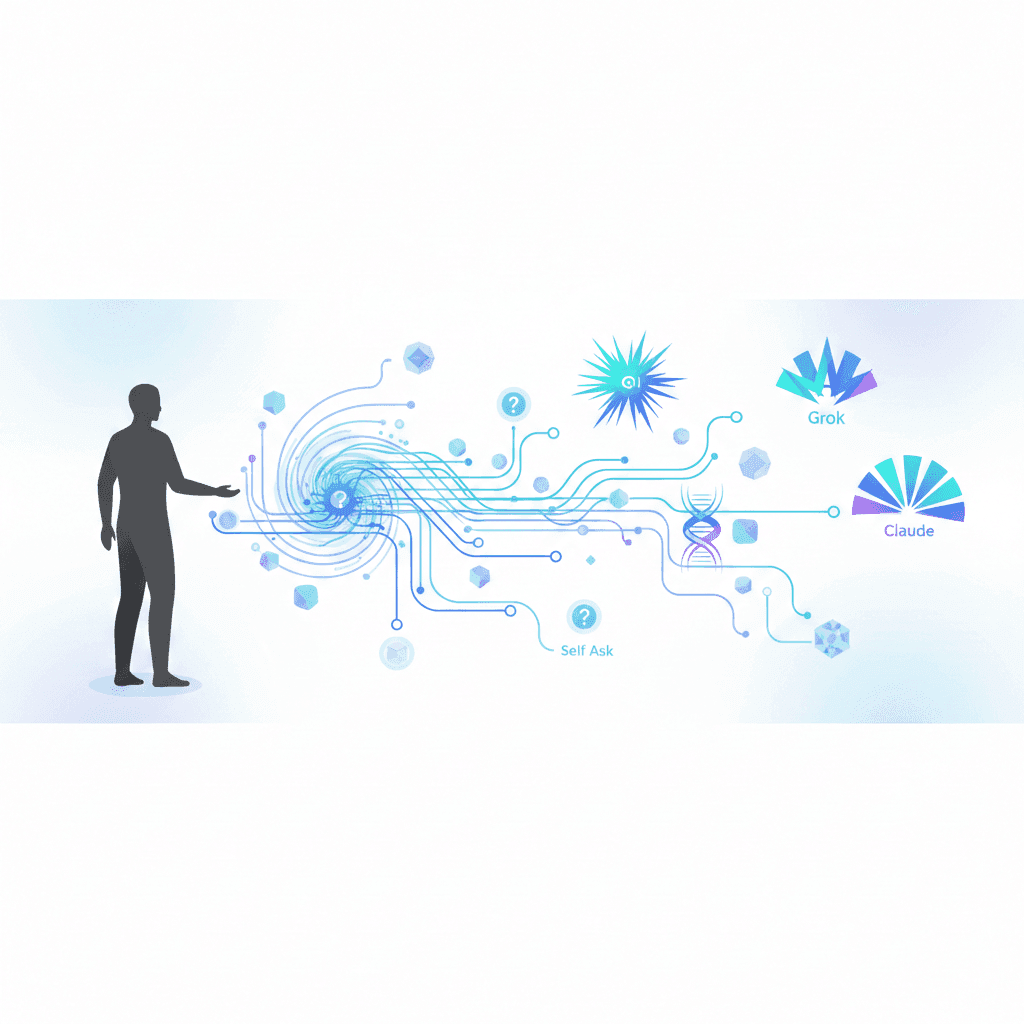
Advanced prompting techniques in 2026, including Chain of Thought and Self Ask prompting, help beginners and AI curious.
This week in AI: regulators tighten scrutiny on Grok, Gemini expands, GitHub doubles down on AI agents, OpenAI pushes deeper into healthcare & more
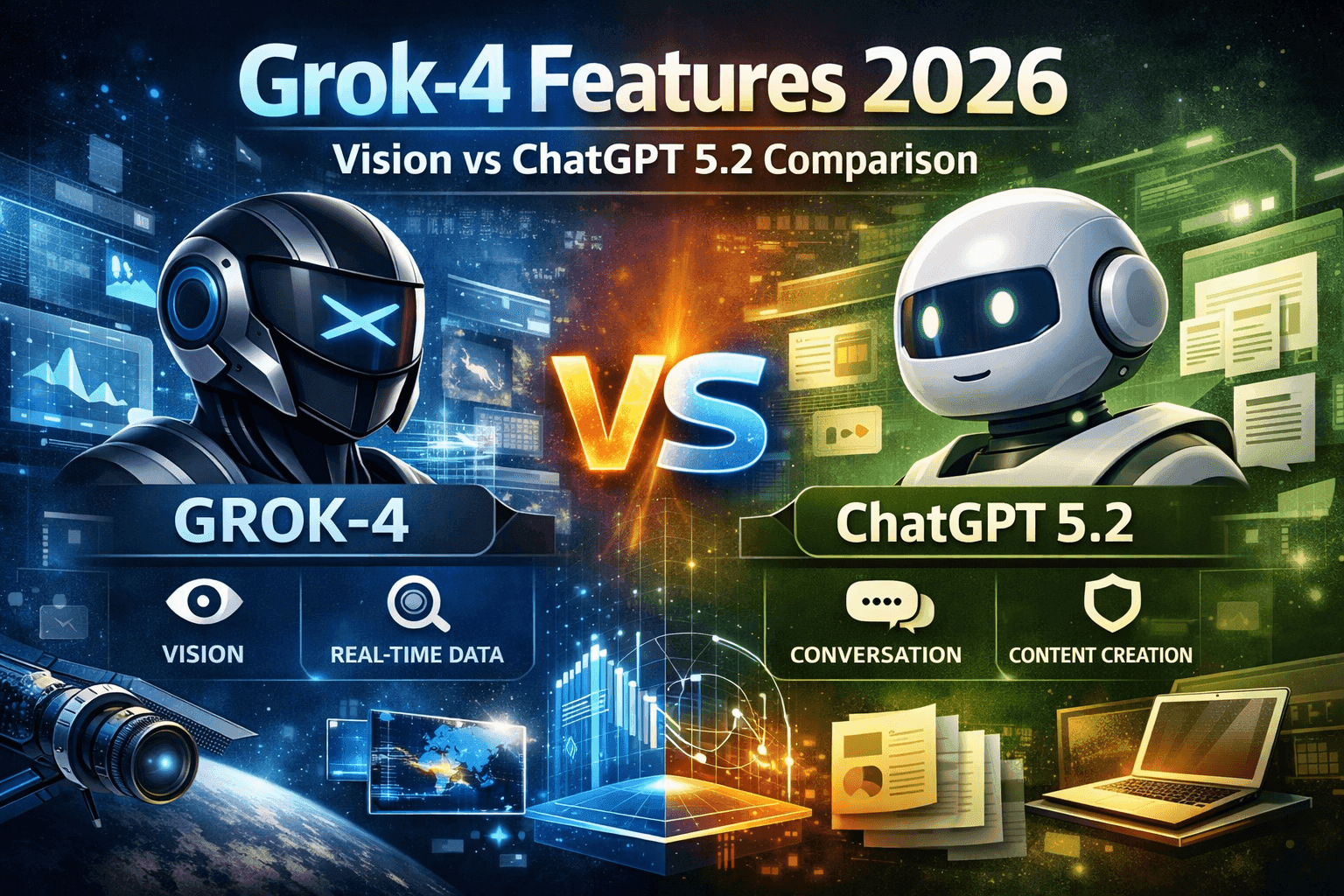
Deep dive compares Grok-4 and ChatGPT 5.2, highlighting their strengths, use cases, and differences.
Google released two AI memory migration tools on March 26, 2026 that let you move your ChatGPT or Claude context into Gemini as persistent memory. Here’s the workflow, the copy-paste prompt, and when to skip it.